

A dead-simple guide for absolute beginners to installing Linux.
Read more: Installing Linux1. Introduction
1.1 What is Linux?
Linux is an Operating System or OS. This is a large piece of software that makes your computer work, and every device runs an OS — an iPhone runs iOS, an Android phone runs Android OS, and of course a Windows computer will run Windows. Linux is a series of OSes that are FOSS: Free open-source software, which anyone can download, edit and use for no cost.
Does Linux work?
The results speak for themselves. Linux’s wide umbrella includes Android, which if you’re not using an iPhone you’re probably running right now. Plenty of other devices and gadgets use Linux software such as tablets, smartwatches, and possibly your favourite machine.
Why use Linux?
Microsoft sucks. A lot. I hate Microsoft and I cannot wait until it topples and the financial vultures come to feast on its corpse. Windows 11 has only exacerbated its issues: it’s slow, bloated, comes with a load of spyware, wants always-online internet, Microsoft is forcing delights like Copilot and OneDrive down our throat… At some point Windows will become so unusable there’ll be no choice but to switch. So you might as well get on the track as soon as possible.
But forget the cons of other OSes, what are the pros of Linux?
- Free!
- Highly customisable
- Works on pretty much any device
- Can be as easy or as difficult as you desire
- Often fast and lightweight
- Stable and up-to-date (hopefully things won’t crash as much)
- Lower risk of viruses and other malware
- More private & secure
And the cons, as every piece of software will have:
- Takes some computer ability
- Mixed gaming capabilities
- Fewer apps
- Lack of tech support
Read more on itsfoss.com at https://itsfoss.com/advantages-linux/, thanks to Ankush Das.
1.2 Linux In-Depth
If I haven’t convinced you yet I’ll go over some of these points in more detail.
Takes some computer ability: Reading this guide assumes you have some computer knowledge. If you don’t know what a computer is, get outta here. If you get scared when your computer beeps, it’s time to face your fears. If you are patient, curious, and open to asking questions you’ll find it both possible and rewarding! If you are familiar with modding a game you’ll have enough technical ability to do this.
Mixed gaming capabilities: The vast majority of videogames are built for Windows and this must be kept in mind if you’re a Gamer™. You need to be prepared for the reality that you won’t be able to play every game under the sun on a Linux system. You also won’t be able to run every single Windows app, if you care about that sorta thing. Here are some things to keep in mind:
- Emulation works well — if you like playing retro games you’ll be good.
- Steam has varied Linux support. Steam’s been working on Linux support for years and each game on the site will show you if it can be played or not. Keep an eye out for this when you’re buying a game.
- Research — check if something will work or not by googling the name + your distro. If you’re lucky you’ll find instructions for how to run it or people saying it just doesn’t work.
2. Getting Started
2.1 Ingredients
You’ll need a few things:
- Computer, preferably not your main device. It’s best to use an old or spare device for this just in case you break it.
- Main computer with free USB slot
- USB stick, 4 GB+
- Internet connection
- About an hour
On the software side, you’ll need a bootable USB stick creation software like https://etcher.balena.io/ so download and install that.
2.2 Distros
A distro (short for distribution) is a specific flavour of OS. There are a lot out there, from popular and well-tested to brand new or incredibly niche. You can experiment with all the distros you want but I’ll keep it simple in this guide and stick to one, Linux Mint, which I’ll be installing on an old Chromebook. Other popular distros you can try out include Ubuntu, Fedora and Elementary OS.
For ease of use I’ll recommend some specific distros that are user-friendly and lightweight so you can get started right away. Of course feel free to use whichever distro you want, though if you’re a beginner I’d stray away from those aimed at experienced users.
Lubuntu is an Ubuntu-based distro that’s lighter and faster than regular Ubuntu.
Elementary OS is a distro aimed to be easy, based on Ubuntu. It describes itself as “thoughtful and ethical” and visually it looks similar to Mac OSX. Pay what you want; I’d recommend this for Mac users.
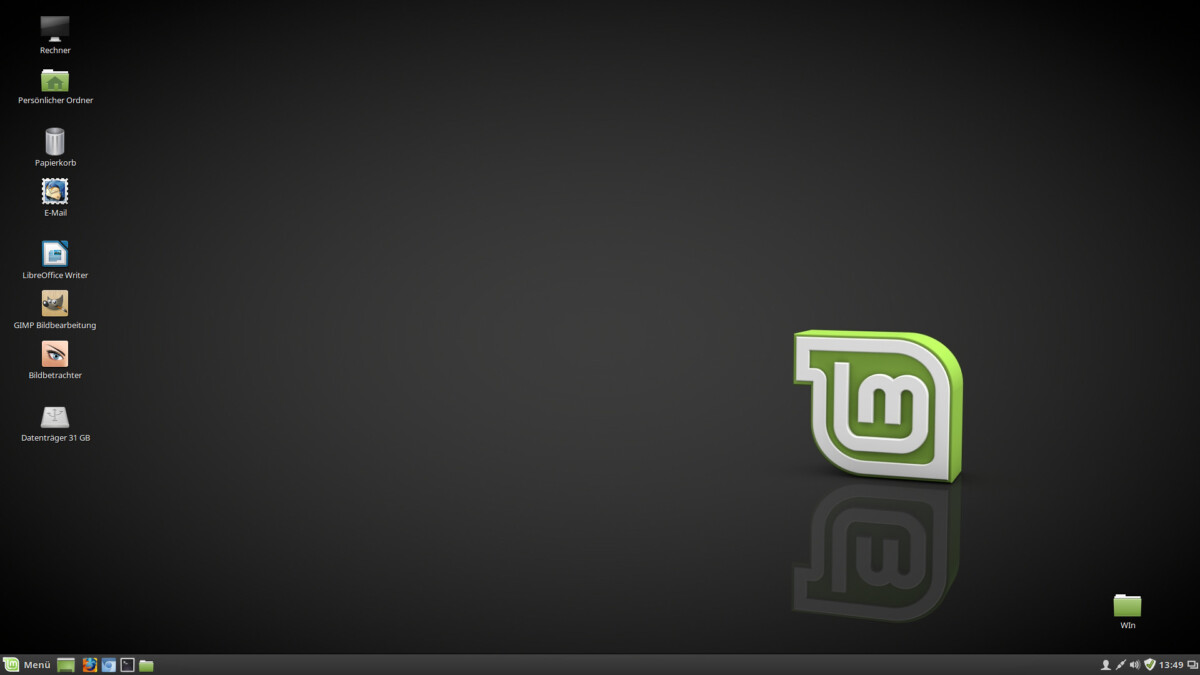
Linux Mint is designed to work out of the box, based on Debian. This worked excellently on my busted laptop way back in the day.
Zorin OS is the Windows to Elementary — it’s designed to mimic Windows, which helps it feel familiar to beginners. ‘Lite’ is available for older computers.
Fedora is a solid choice for beginners, especially because it has a bunch of options. I personally use Cinnamon on my laptop but LXDE would be good to use on an older, slower computer.
How do I choose a distro? Just wing it. If you’re really stumped follow this tutorial closely and go with Linux Mint.
Terminology
ISO: A disk image ie. the file that would go on a CD.
OS: Operating System. The software that makes a computer run.
2.3 Installation
Warning! I’m not an expert and don’t claim responsibility for anything that happens to your computer. Do this at your own responsibility. Always backup your data to a safe place before you do anything.
Steps
1. Download your distro. Linux Mint offers its ISOs through a torrent so I’ve gone and downloaded that.
2. Backup the data on your USB stick and your device.
3. Run your USB write software, BalenaEtcher in this case.

4. Click “Flash from file” and select the ISO file you’ve downloaded.
5. Click “Select target” and choose the USB stick you’ve inserted.

6. Click flash and wait for it to do that. Warning! You will lose all the data on your flash drive.
7. When it’s finished, unplug your USB stick and plug it into your device.
8. Boot from USB. If you don’t know how to do that, you’ll have to google it I’m afraid, as it depends on your computer’s manufacturer. Search something like “boot from USB dell laptop” if you have a Dell or etc. You should come to a screen that looks like this:

9. Use the arrow keys to navigate and enter to select.
The computer will take some time to think while it boots. Then success!

10. Let’s click “Install Mint” to install it.

The first steps are pretty straightforward. Then sit back and relax while it installs.

Note! Make sure you select “erase disk” during the installation. Dual booting is more complicated and outside the scope of this tutorial (and my abilities)

Wait for it…
11. You’re done! Restart the machine and enjoy your new distro.

3. Now What?
You’ve done the hard part. What do you do next when installing a new OS? Explore a little and test it out. If you haven’t already, add your wifi connection and test the internet. Have a poke through the settings and pre-installed apps like the calculator or LibreOffice or Notepad just to see what works.The first thing I do after adjusting the settings is to make it look good. Because duh. On a laptop the display settings are important because of its smaller screen. Luckily Linux is so customisable we can adjust it however we want!
A desktop environment is the part of the OS that manages the windows, taskbar and all that good stuff. Linux Mint uses one called Cinnamon but other popular options include KDE and GNOME. You can install and use whichever desktop environment you wish.
Linux Mint comes with a lot of pre-installed apps. Note you already have essentials like Firefox and Thunderbird, but you can grab extras like Discord too.
3.1 Suggestions
Here’s a quick list of useful apps.
- VLC – Well known media player
- Discord
- Steam – Note not all games will work on Linux
- Flameshot – Screenshot software
- Bottles – Software that helps you run Windows apps
- Bitwarden – Password manager
- Krita – art/photo editing program
Help
Stuck? Need help? Got lost? Don’t know why you broke it? You can contact me on Bsky.
- https://www.linuxmint.com/documentation.php
- The Complete Beginner’s Guide to Linux_. https://www.linux.com/training-tutorials/complete-beginners-guide-linux/
- https://etcher.balena.io/


Leave a Reply